This guide explains how to authenticate with AWS EKS, configure kubectl, and connect using Lens (Kubernetes IDE) or, optionally, the Kubernetes Dashboard.
AWS CLI v2+ installed and configured with SSO or access keys.
kubectl installed.
eksctl (optional, for cluster management) → eksctl.io.
Lens installed → Download here.
IAM permissions to describe and access EKS clusters.
IAM permissions to list and access EKS clusters.
First, ensure an SSO session is configured in your local CLI:
Option #1:
Run the following command to initiate configuration:
Copy the Access Keys shown in your AWS Access Portal:
The following fields can be skipped:
SSO registration scopes [sso:account:access]CLI default output format [None]After configuration is complete, you should use
--profile <your_profile_name>at the end of every aws CLI commands from this point on.
b. Option #2:
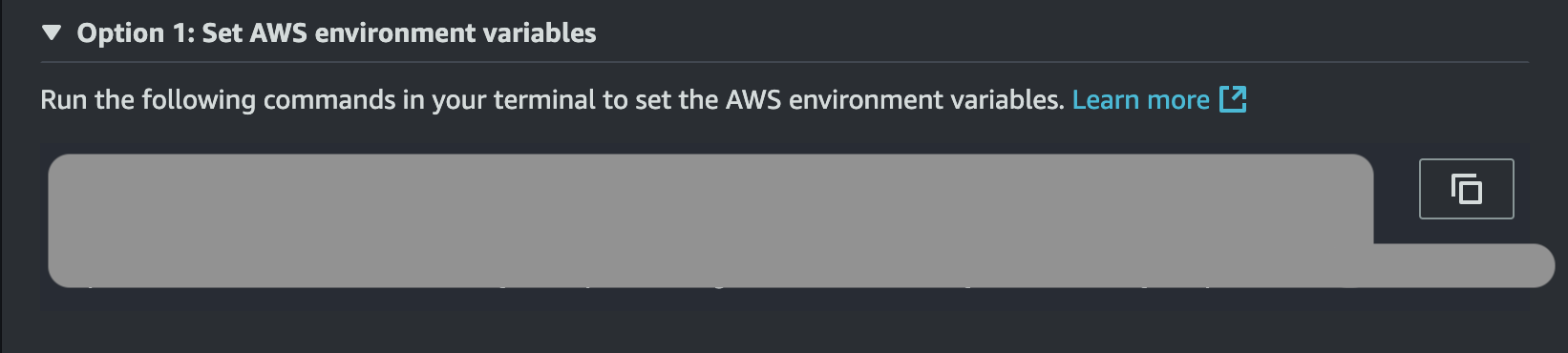
Within the access keys in the access portal shown above, you will find the following block of commands, copy and paste it in your terminal:
Now, open a terminal and ensure your AWS CLI session is active:
Retrieve the list of EKS clusters available to your account:
Select the desired cluster from the output.
To interact with your EKS cluster, you need to update the kubectl configuration.
Run the following command to generate the kubeconfig:
Verify connectivity by running:
This should return a list of nodes in the cluster.
Linux/Mac:
~/.kube/configWindows:
%USERPROFILE%\.kube\config
Lens automatically scans this file.
To check what contexts you have:
kubectl config get-contexts
kubectl config current-contextOpen Lens.
Go to Clusters → Add Cluster.
Lens shows all contexts from your kubeconfig.
Select your EKS cluster context (looks like
arn:aws:eks:region:account:cluster/<name>).Click Add Cluster → Open it.